- Connect the USB to Nvidia Device. Ensure that this pairs to keyboard.
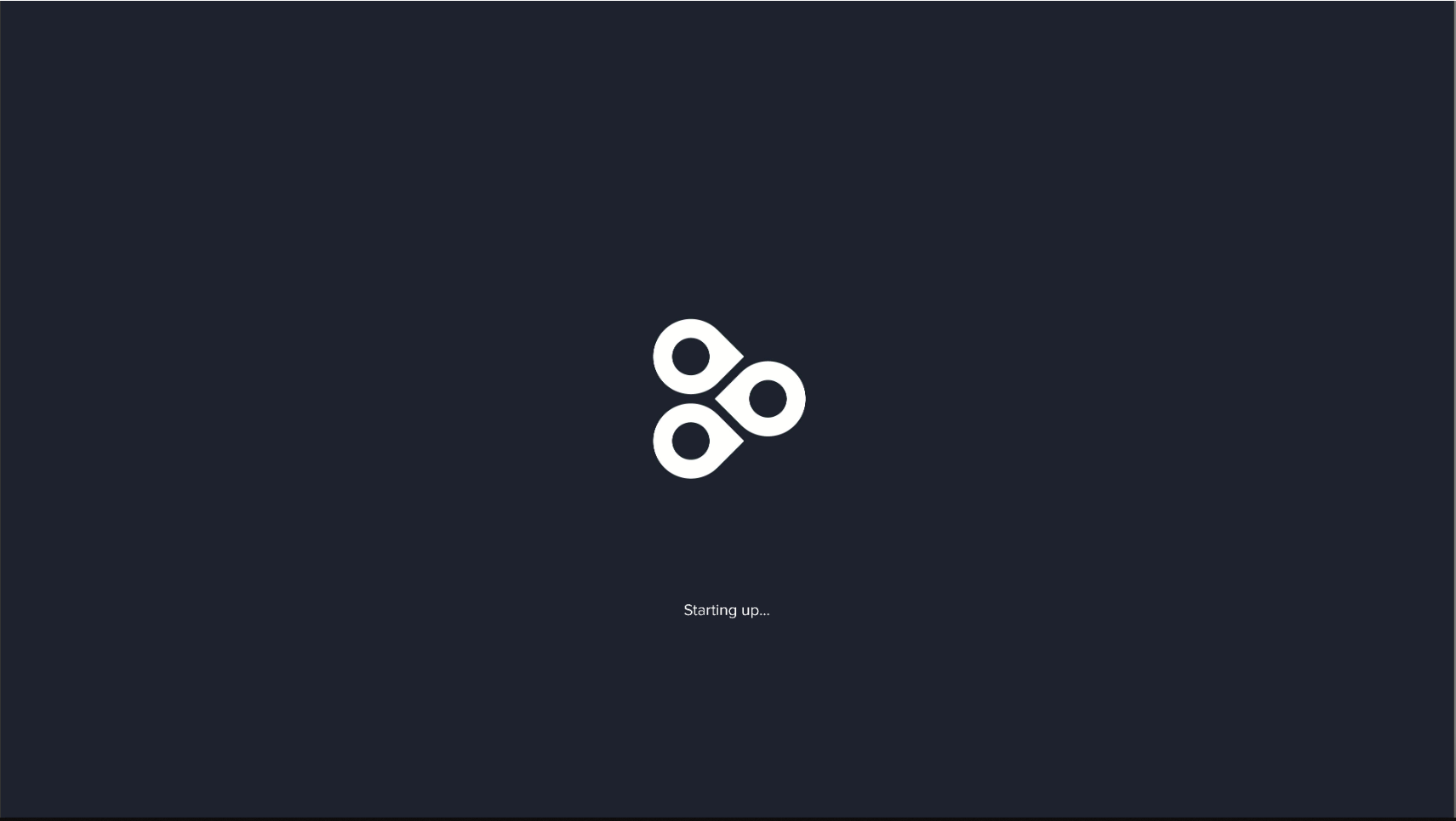
- Press Windows + Enter to bring you to a screen that says 'Starting Up'. See below:
- Once the 'Starting Up' Screen is showing, press Windows + Enter again, this will bring up a side menu:
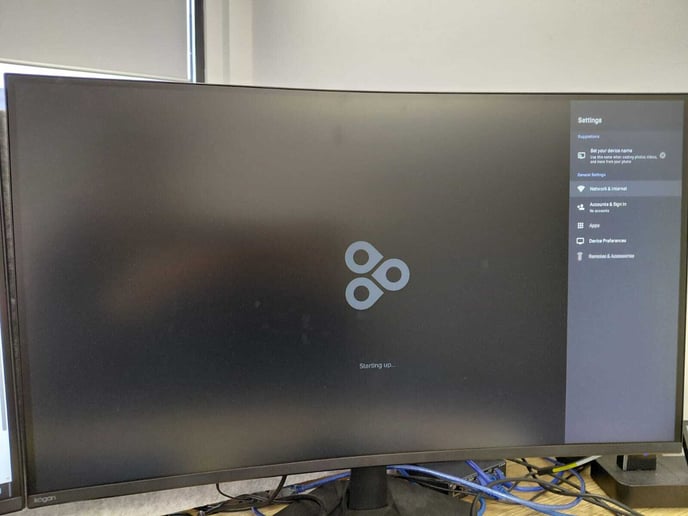
- Once the side menu is showing, select Network & Internet. Tick the Wi-Fi option, this will present a list of available networks to connect to
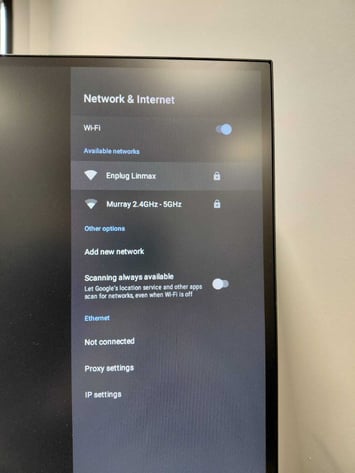
- Locate the network you are attempting to connect to. Enter the password in and press enter once complete.
Note: You may be booted back to a 'Connect me to the Internet screen'. Pressing Win + Enter once should bring you back to the password enter screen. - Once successful connection, you should be taken back to the Network & Internet Tab. If connection is truly successful, it should say 'Connected' under the chosen network.
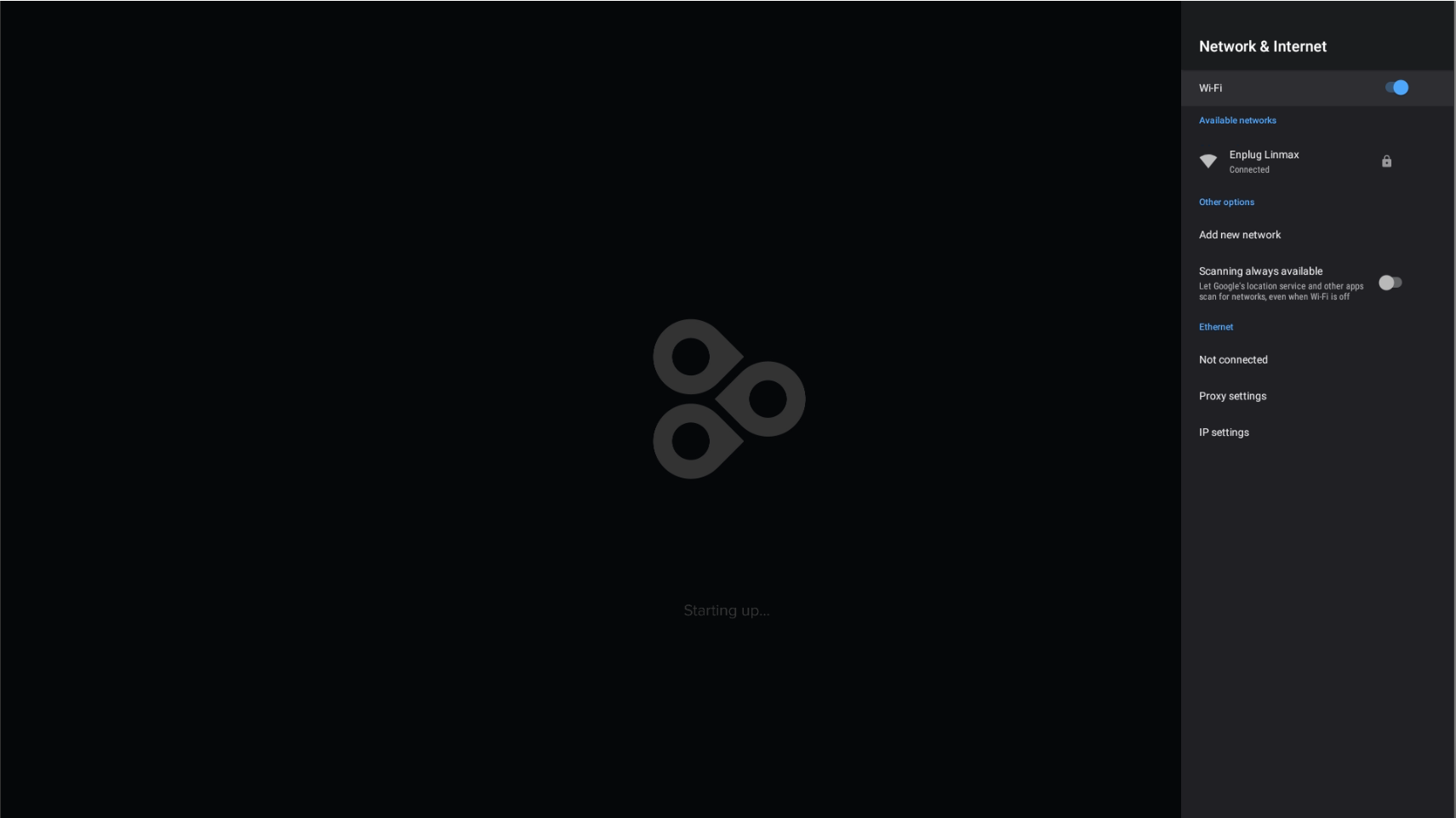
- Press Escape until you are taken back to the 'Starting Up' screen, with no side menu.
- Wait until the passphrase shows on screen. This will then require connection to the device's display group.
If the device is already connected to account then there are no further steps required.
Note: If you get stuck on the 'Starting Up' Screen, repower the device by unplugging and re-plugging its power.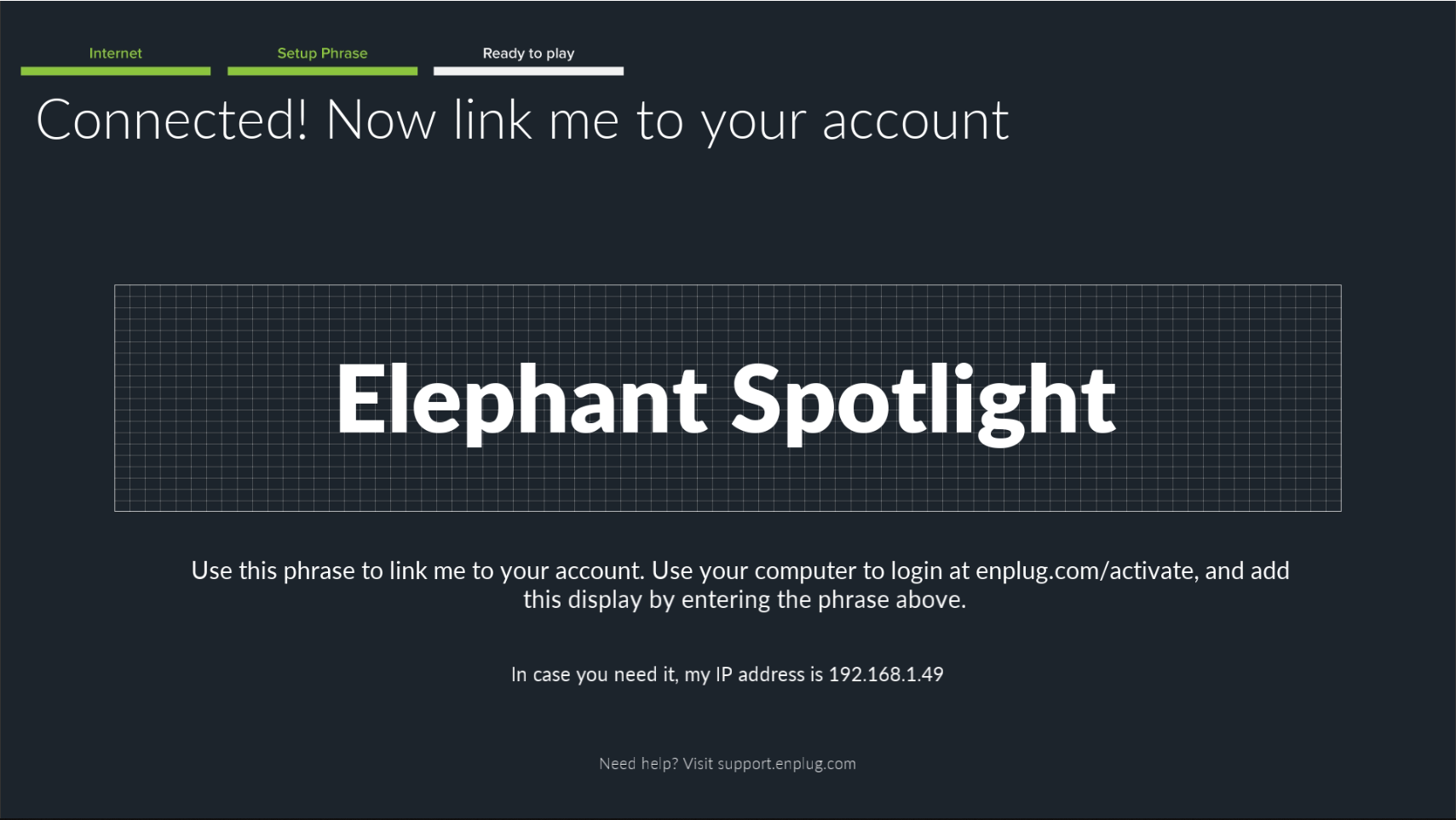
If you have any further issues or questions please contact us via our support email:
support@enplug.com.au