What is the Real Estate Live Application?
The Real Estate Live app automatically transforms your realestate.com.au listings into dynamic digital signage. Once set up, your For Sale and For Rent properties pull directly from your realestate.com.au feed and cycle seamlessly on your displays.
You maintain full control: choose which listings appear, how many are shown per screen, and customize the visual theme to match your agency's branding!
Dashboard Navigation
The app has three pages, shown along the top of the app:
-
Available Listings — Everything currently pulled from realestate.com.au for your agency, according to your Agency Code
-
Display Sets — The "playlists" you build and send to screens.
-
Profile — Your agency identity (Agent Code) and profile details.
1. Getting Started (First-Time Setup):
Entering your REA Agent Code:
When you first log in, you will notice that no listings are displayed. To populate your properties, the app needs to link to your realestate.com.au feed using your Agent Code.
How to link your account:
- Navigate to the Profile page in the Real Estate Live app.
- Under the Real Estate Office section, enter your Agency name and your Agency ID (REA Agent Code).
- Click Save Settings.
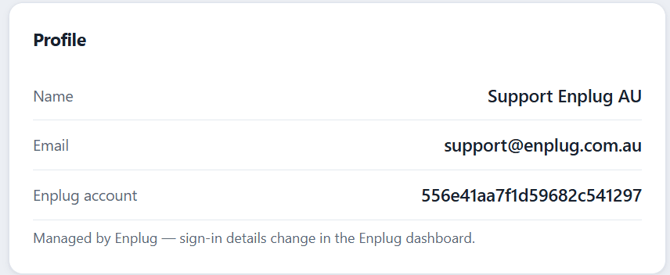
Note: This Agency Code is used strictly to pull your public listing data. Once saved, you will never need to enter it again! If you do not know your REA Agent Code, our Enplug Support Team can help you find it. Reach out to us at support@enplug.com.au.
2. Check your Available Listings:
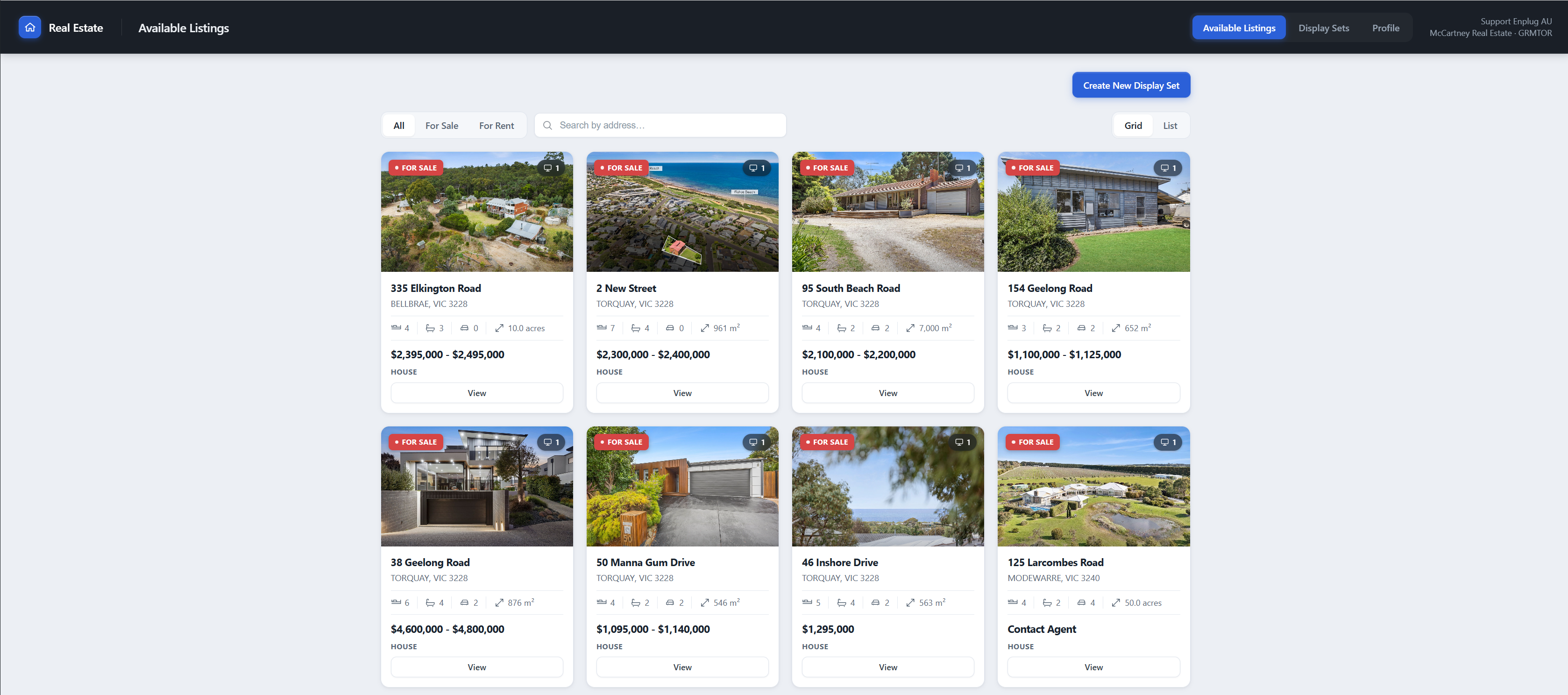
Once your Agent Code is saved, navigate to the Available Listings page. You will see your property feed instantly populating!
- What you'll see: Each listing appears as a card featuring the primary property photo, address, price, property specs (beds/baths/cars), and a For Sale or For Rent tag.
- Automatic Updates: The app refreshes your feed roughly every hour. You will never need to manually add, update, or remove a sold property by hand.
3. Building a Display Set:
A Display Set is the actual playlist of properties that will run on your screens. To build one, click the Create New Display Set button and follow these four steps:
Step 1: Listings
Choose which properties you want to showcase. Your options include:
- Show All Listings
- Show All For Sale Listings
- Show All For Rent Listings
- Show Specific Listings (This option allows you to manually curate and reorder exactly what appears on screen).
Step 2: Per Page (Layouts)
Select how many properties you want to display on a single screen at one time, and set the Cycle Time (how long the screen pauses before rotating to the next page).
We offer three premium layout options:
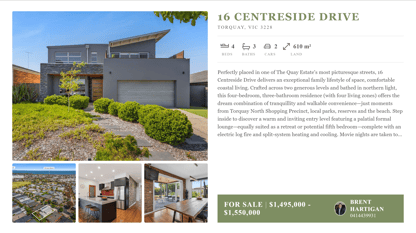
- 1 Listing Per Page: Highlights a single property in detail, including a descriptive paragraph and multiple photos.
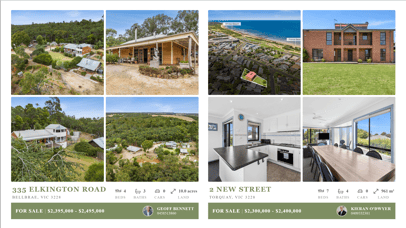
- 2 Listings Per Page: A side-by-side comparison highlighting key photos, specs, and agent details.
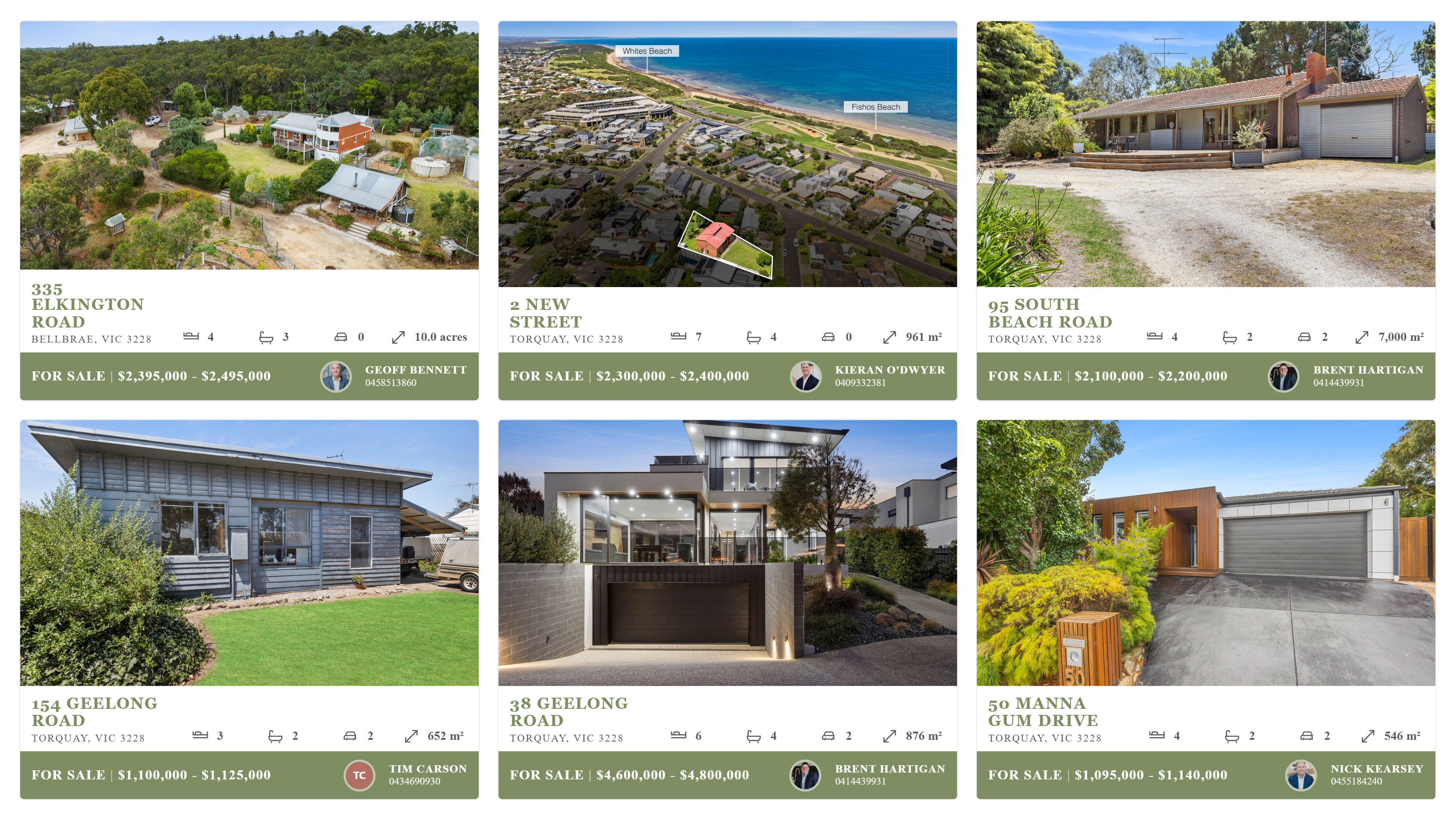
- 6 Listings Per Page: A beautiful grid view perfect for showcasing a high volume of properties.
Step 3: Themes
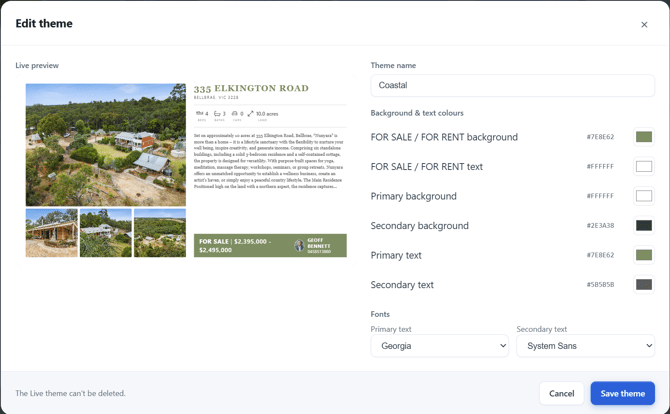
Customize the look and feel of your display!
- Colours: Set your background and accent colours to match your agency's branding. You can save your favorite themes for future use.
- Visibility Toggles: Hide or show specific listing elements, such as the Price, Agent Profile Picture, or Agent Phone Number.
Step 4: Confirm
Review all your selected settings, give your Display Set a recognizable name, and save it.
4. Showing a Display Set on your Screen:
Once your Display Set is built, it's time to push it live.
- Go to the Display Sets page.
- Click the Show on display(s) button next to your newly created set.
- Select the specific Display Group(s) you want to cast to.
Any online device linked to that Display Group will immediately begin downloading and playing your real estate content!
Troubleshooting and FAQ:
| Issue | Solution |
| No listings can be found? | Ensure your Agency Code is entered correctly in the Profile section and that you have clicked Save Settings. If it is correct, wait a few minutes for the initial data pull to complete. |
| A listing is missing or out of date? | The app directly mirrors realestate.com.au. Check that the listing is completely up-to-date on REA first. Our app will sync those changes within the next hour. |
| I built a set, but nothing is on the screen? | Double-check that you have assigned the Display Set to a Display Group using the Show on display(s) button. |
Still stuck? We are here to help! Contact our team at support@enplug.com.au for further assistance.