Company Templates allow you to lock down the editing access of users within your Enplug Network on templates created within Enplug.
The below steps will assist in creating a template, and then restricting editing access via the Company Templates Application on our Enplug Dashboard.
Creating the Sign:
- Navigate to your Templates Application, this can be located via the Apps Tab at the top of your dashboard.

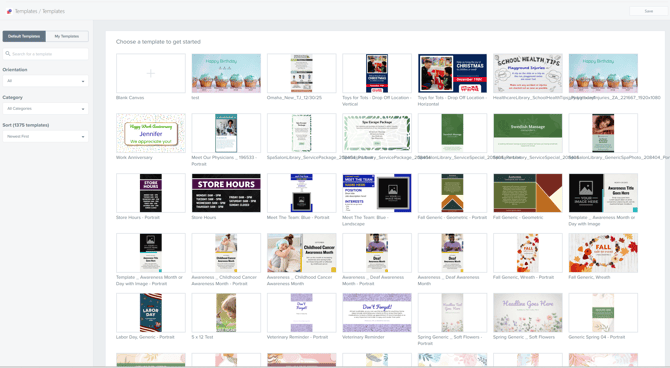
- Create a new template via Blank Canvas or Choosing a Template, for this example, we will be using a Template.
- Select a Template:
- Once you have completed the Sign, save it, navigate back to "My Signs".
- Identify your new sign that you just created and convert it to Template. This is done via the Convert to Template Button on the right side:

- Navigate to "My Templates"
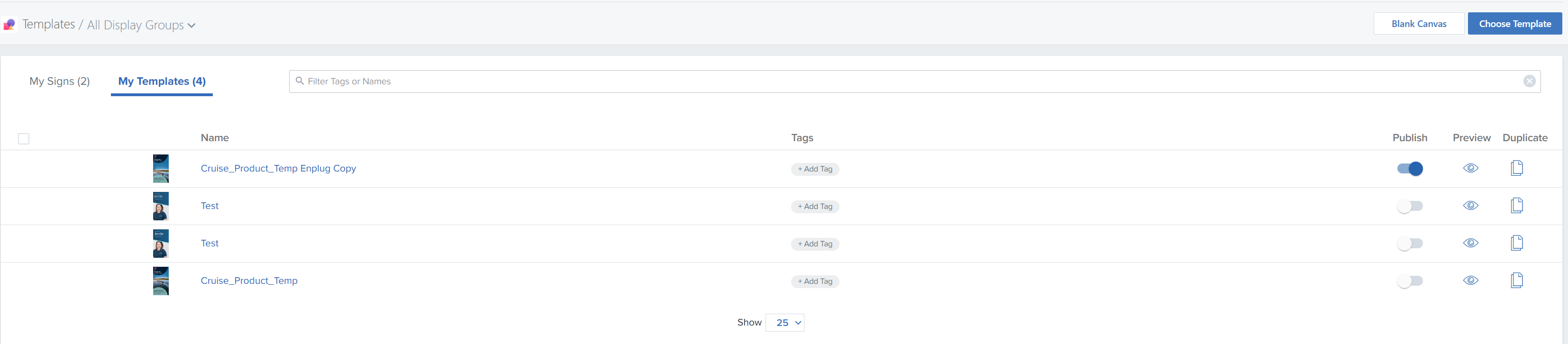
- Select your new Template and open it to edit.
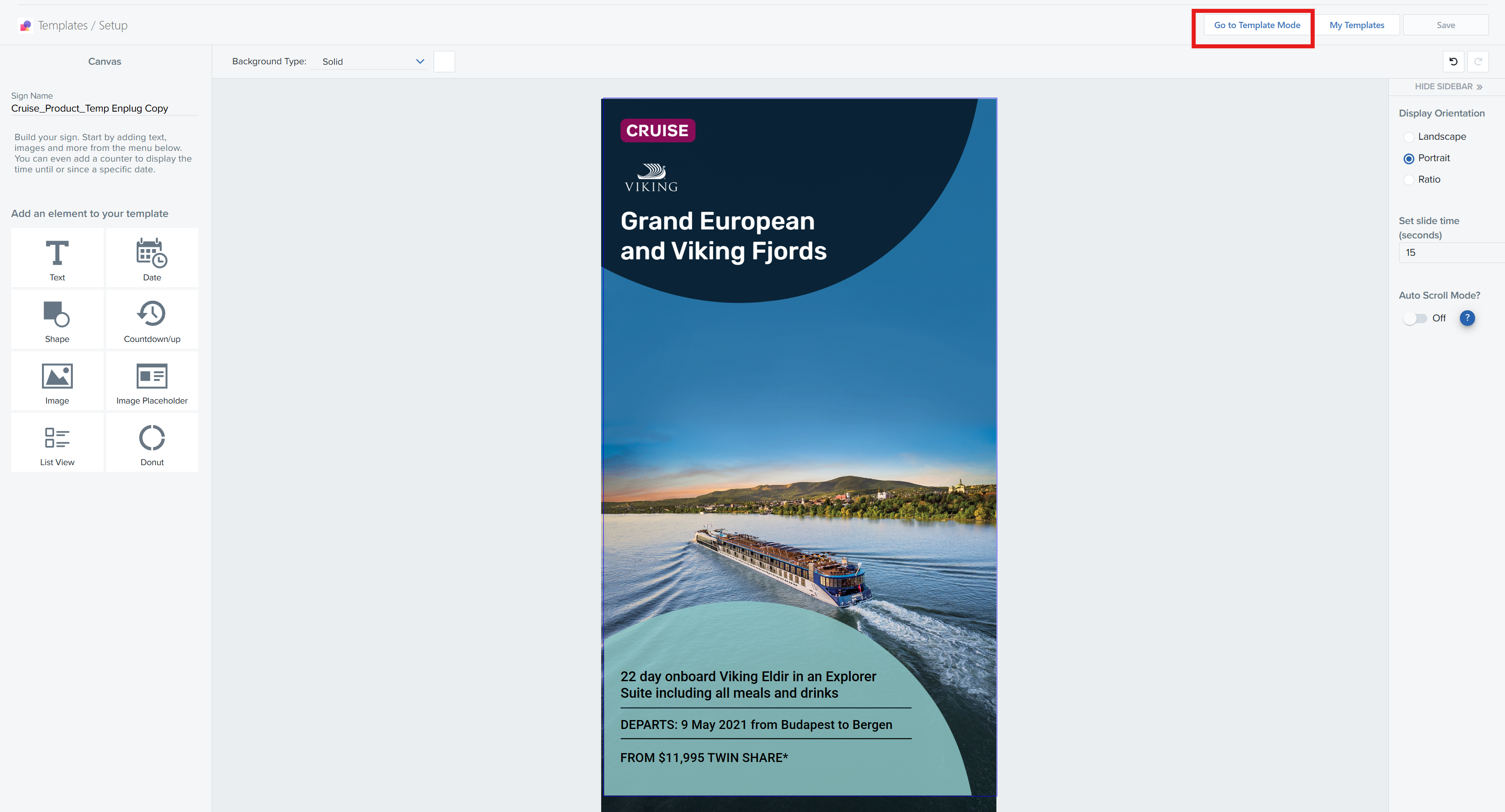
- Select the "Go to Template Mode" at the top right of the page.
- You will notice the left side of the page changes to provide all the fields currently on your template. This includes all images, text boxes, shapes, etc.
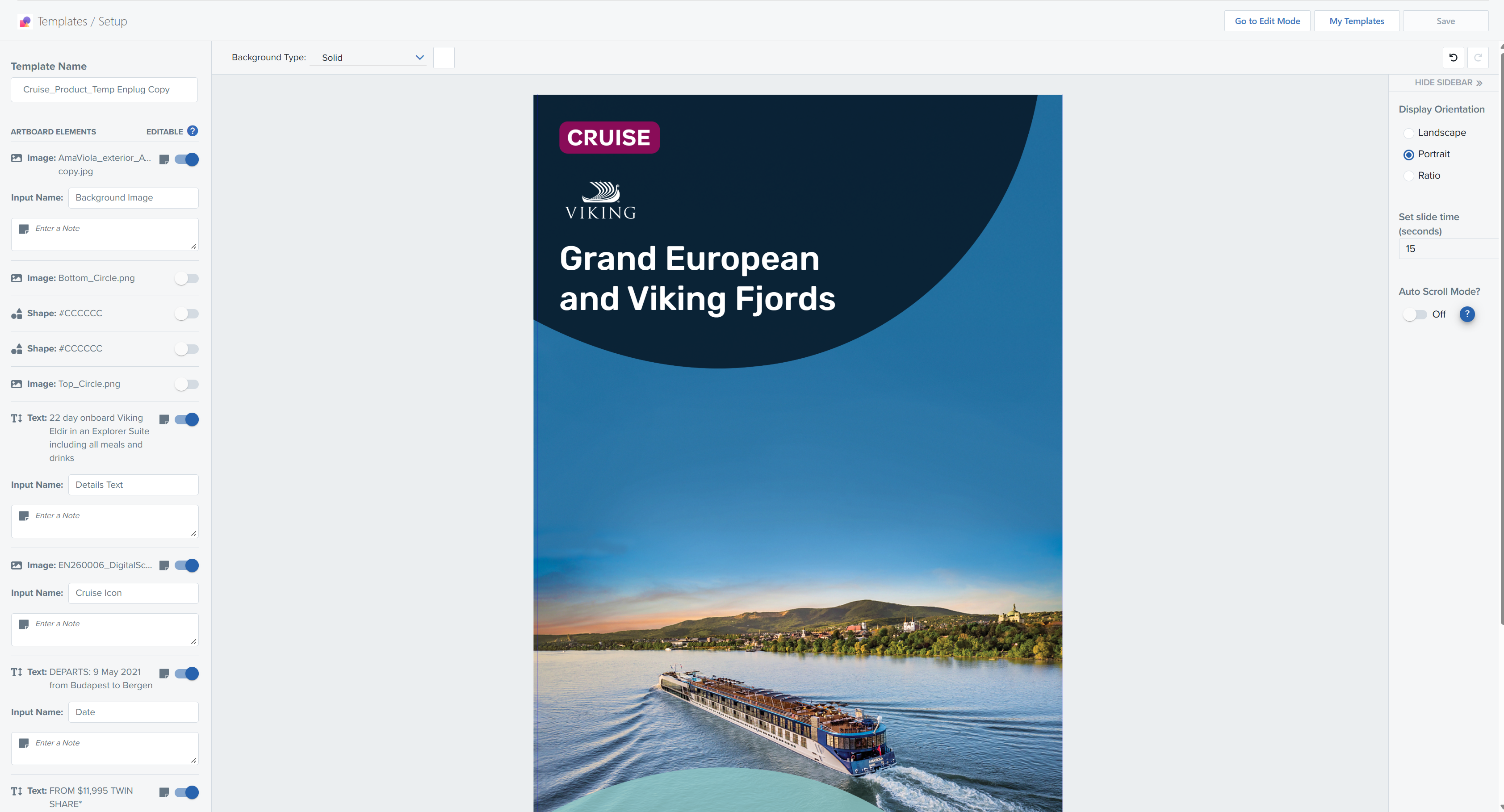
- This is where you set what is editable by your users and what is not editable.
Turn on the Editable Toggle for the fields that you want your users to be able to change and edit. - You have also got the ability to set a note for each field that you tick on to be editable.
This note allows you to provide a comment for users to assist in what content to put in replace of the template image.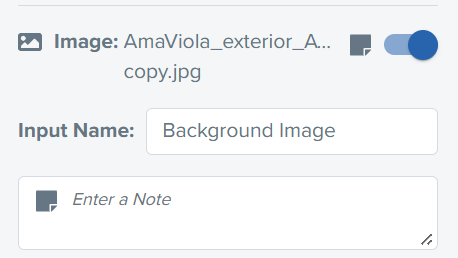
- Once done ensure you save the changes.
- Navigate back to your templates.
- Publish the Template to be used in Corporate Templates:

- Navigate to Corporate Templates. This is via the Apps Tab at the top of your page.
- You will notice that your template should be listed:
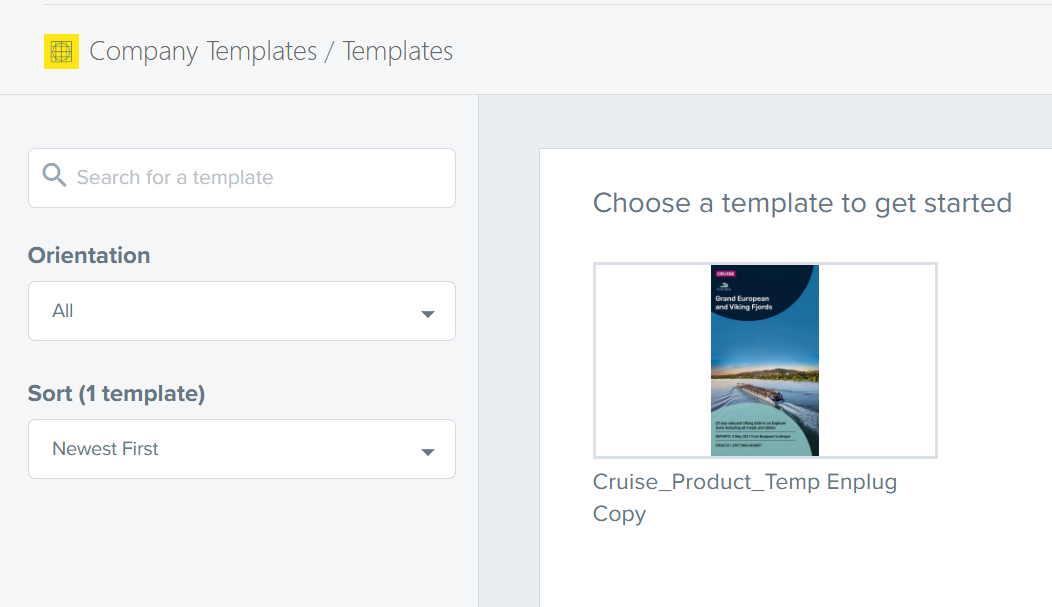
- Select the Template
- You will find that you can now edit the fields that you selected to be editable. This allows you to customise the template that you intially set.
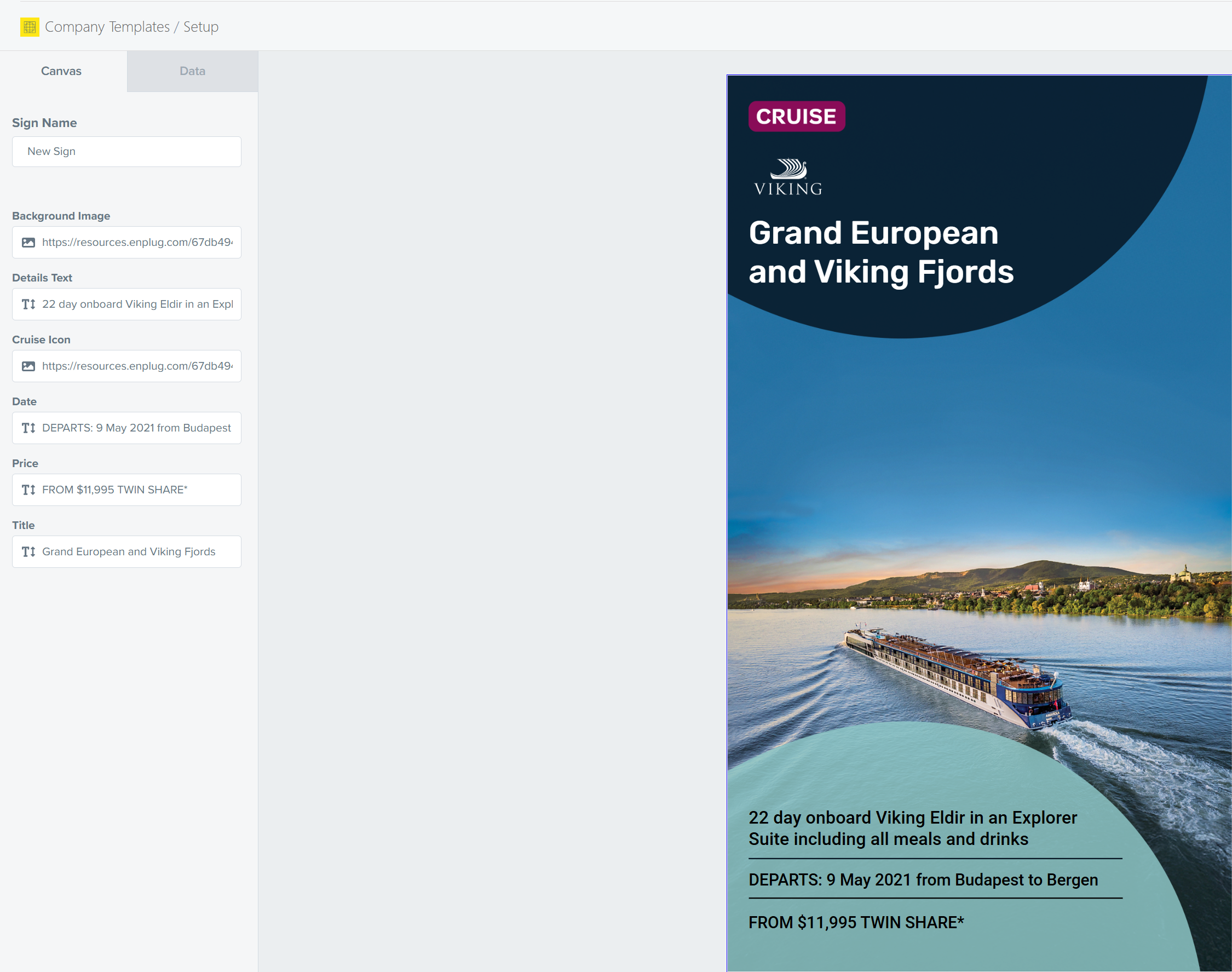
- Save your changes.
- When you save the changes, you will have the ability to rename the Template that you have created, as well as the display group to assign this Template to display on.
If there are any issues in completing these steps, do not hesitate to reach out to our support team at support@enplug.com.au